Conversion-rate inputs, arithmetic and campaign decisions

Conversion Rate Calculator: Formula, Inputs and Examples

Advertisers, affiliate marketers and media buyers can use our conversion rate calculator to turn two compatible campaign counts into a percentage. Divide accepted conversions by the matching eligible opportunities and multiply by 100. We explain which inputs belong together, how to reproduce the result and what it can support in your next FroggyAds traffic decision. The percentage describes the records you supply; it does not predict future sales.

conversion rate calculator
Conversion Rate Calculator framework for planning, production, measurement and controlled improvement

What numbers go into a conversion rate calculator?

Quick answer: Enter the accepted conversion count as the numerator and the matching eligible interactions or sessions as the denominator. For example, 80 accepted actions from 2,000 eligible opportunities gives 80 / 2,000 × 100 = 4.00%. If you want the share of sessions that converted, use converting sessions rather than a count of all repeat events. Keep that unit visible when you report the result.

For the separate measure of clicks relative to impressions, consult Google Ads: Clickthrough rate definition. Clickthrough rate describes ad response; the calculator below describes the completed action you choose.

Key takeaways for Conversion Rate Calculator

  • Choose the conversion state before entering a number: submitted, accepted and paid outcomes are different inputs.
  • Match the numerator to its eligible audience, dates and denominator unit.
  • Retain both counts beside the percentage so another reviewer can reproduce your calculation.
  • Combine compatible groups by adding their counts, rather than averaging their percentages.
  • Use the result with accepted value and cost before increasing a paid traffic budget.

Choose the right numerator and denominator

The calculator performs one operation: numerator / denominator × 100. It cannot decide whether your records describe the same customer opportunities. If the numerator counts accepted leads from a landing page, the denominator should represent eligible opportunities for those leads under the same scope. Entering all website visits instead may answer a different question. Write the event and the denominator unit next to the saved output.

For a session-based measure, count sessions with at least one accepted action once. For a user-based measure, count people under the identity rules of the chosen report. A person who visits three times does not create three unique users, and two purchases in one session do not create two converting sessions. These distinctions change the input without changing the arithmetic, which is why the report definition must come first.

Advertising reports may instead count conversion events per eligible ad interaction. Google Ads explains that multiple actions or Every counting can produce a rate above 100%. That is a different measure from the fraction of sessions that converted, which stays at or below 100% when its sets are consistent. Keep event-count rates labelled; do not automatically discard a number above 100% or present it as a unique-customer percentage.

Use a calculated rate to make a defined comparison

A calculator is useful when you need a reproducible answer from known counts. Save the exported records and the exact inputs so a teammate can recreate it. The output can support a page comparison, source review or planning scenario, but it cannot repair missing denominator records or establish that a campaign caused the observed conversions.

Suppose two hypothetical pages each record 10%. One has one converting session from ten eligible sessions; the other has 100 from 1,000. The displayed percentages match, while the amount of observed evidence differs substantially. Keep the counts and the comparison conditions in view, and use an appropriate statistical review for consequential test decisions. This calculator does not provide a confidence interval or significance test.

Commercial value needs a separate calculation. A rate based on sales-approved leads can be lower than a form-submission rate while being more useful for buying traffic. If 15 forms arrive from 500 eligible visits and nine pass qualification, submission rate is 3% and accepted-lead rate is 1.8%. Both are informative when labelled; replacing one with the other silently would mislead the next budget review.

Connect the guide to live testing

Connect Conversion Rate Calculator to a controlled audience test

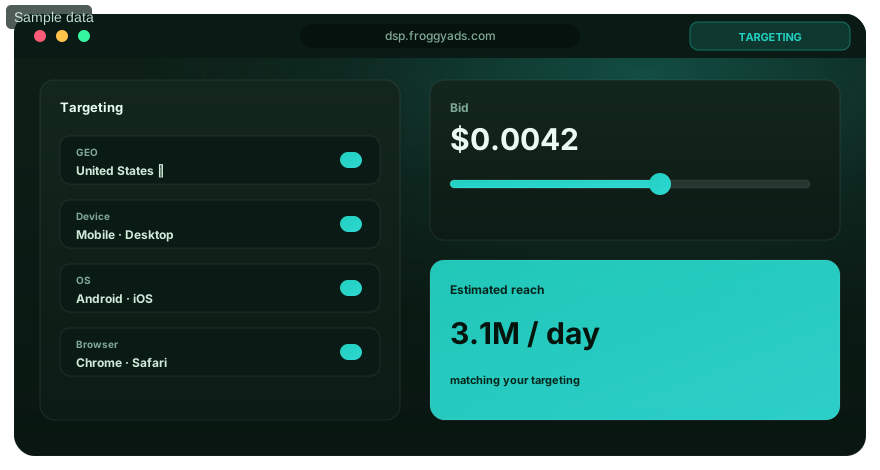
Use the calculator on a defined FroggyAds campaign or source group after your own tracking and acceptance checks. Our GEO, device, bid, budget and source controls help you keep the traffic purchase tied to that group. Enter its actual counts, retain the eligibility rules and compare the accepted result with the cost you authorized. A free account lets you prepare the campaign; traffic requires funding.

Create My Free Account
Illustration of audience targeting controls for a conversion rate calculator test

Eight checks before entering your conversion-rate inputs

#ComponentOperating requirement
1Decision and unitName the question, accepted action and denominator unit: sessions, users or eligible ad interactions.
2Event selectionSelect the intended completion; keep button clicks, form submissions and approved leads as separate event states.
3Record sourceRetain the report or business system supplying each input and reconcile differences before combining them.
4Observed coverageDescribe consent and collection limits; do not mix observed numerator records with a broader, incompatible denominator.
5Repeat actionsDeduplicate technical retries while retaining legitimate repeat purchases under your declared counting rule.
6Input validationRequire non-negative counts and a positive denominator; check that a session fraction does not exceed its eligible base.
7Comparison basisAlign period, timezone, eligible population and follow-up opportunity across the groups you compare.
8Saved calculationKeep counts, output, date, filters and any correction note so the result can be reproduced later.

These checks concern the input data, not extra features hidden inside the calculator. You provide the records; the tool performs the division and displays two decimal places. When the data cannot be reconciled, keep the discrepancy outside the calculation and investigate it. A precisely formatted percentage is still provisional if its input counts remain uncertain.

Calculate and check the result in ten steps

1. State the decision

Choose what the result will inform before collecting inputs. You might compare accepted leads by source, describe a landing page or estimate a planning range. State the business action and the eligible opportunity in the same sentence. That prevents an easy-to-export event from replacing the outcome you actually intend to buy.

2. Select the conversion state

Export the chosen state from its appropriate record. For leads, distinguish received, pending, rejected and accepted; for ecommerce, distinguish placed, paid and retained orders. Keep those states separate until you have decided which one belongs in the numerator. The calculator will not qualify the records on your behalf.

3. Identify the denominator

Select the matching visits, users or interactions from the stated scope. If the campaign sends visitors to one offer, use opportunities that could complete that offer. Preserve eligible non-converters in the denominator. Removing them after reviewing performance would change the question from response rate to a selected subset of successful journeys.

4. Record collection limits

Describe any collection gaps before using the counts. Your numerator and denominator must cover a compatible observed population; the calculator does not restore events that consent choices or an implementation fault prevented you from collecting.

5. Resolve repeated records

Check technical retries, confirmation-page reloads and duplicate imports before adding the numerator. A legitimate second purchase may count in an event-total rate while the same session still counts once in a converting-session rate. Retain the original records and the deduplication rule, so a correction can be explained without erasing the collection history.

6. Enter and validate both counts

Enter the numerator in Accepted conversions and the denominator in Eligible interactions or sessions. Use raw numbers, without a percent sign or currency symbol. The current function rejects a non-positive denominator and negative or non-finite input. If your data is a unique-session fraction, investigate a numerator larger than the denominator even when the tool can calculate it.

7. Recalculate one known example

Check the input sequence with a simple hypothetical example: enter 25 and 500 to obtain 5.00%. Reversing those numbers gives a completely different event-per-opportunity result, so inspect the field labels before saving. Then enter your real, reconciled counts. The known example checks your use of the form; it does not validate your tracking system or customer records.

8. Keep precision and counts

The displayed percentage rounds to two decimal places. One conversion from 3,000 opportunities is about 0.0333%, displayed as 0.03%; three from the same base is 0.10%. Retain the original counts for later arithmetic rather than rebuilding totals from rounded outputs. Very small differences can disappear in a rounded display without the underlying records being equal.

9. Compare compatible groups

For an aggregate, add the conversion counts and eligible counts first, then divide the totals. Hypothetically, eight conversions from 100 opportunities is 8%, and 12 from 400 is 3%. The combined rate is 20 / 500 × 100 = 4%, not the simple average of 5.5%. Use this method only when the groups have compatible definitions and do not double-count the same opportunities.

10. Decide from rate, quality and cost

Review the calculated rate alongside accepted volume, acquisition cost and outcome value. Decide whether a further bounded campaign increment is justified, or whether an input discrepancy needs investigation before changing the media purchase.

Measurement model and decision scorecard

Use calculated conversion rate as the stated ratio, with the accepted count, eligible base and follow-up period visible beside it. The table shows what belongs in the record. Neither a precise output nor a higher percentage establishes that the next campaign increment will produce the same response.

MeasureDefinition disciplineReview cadence
Calculated Conversion RateAccepted conversions / compatible eligible opportunities × 100; state whether the numerator is events or converting sessions.After input reconciliation, with original counts retained.
Accepted ConversionsOnly the business state selected for this calculation; pending and rejected records remain separate.At the agreed qualification or merchant review date.
Eligible DenominatorThe named unit and eligible population under the same report scope, dates and exclusion rules.For every calculation and comparison export.
Maturity WindowElapsed time allowed for the cohort to complete and pass the chosen business checks.Before comparing recent and older traffic cohorts.

Keep these definitions with the output in your report or worksheet. If a result changes, inspect which input moved before making a media adjustment. A rise from 2% to 3% could reflect more conversions, fewer recorded visits, faster lead approval or a different audience mix. The calculator confirms the ratio; the supporting records explain what changed.

Choose the execution format

Choose a paid-media format that supports Conversion Rate Calculator

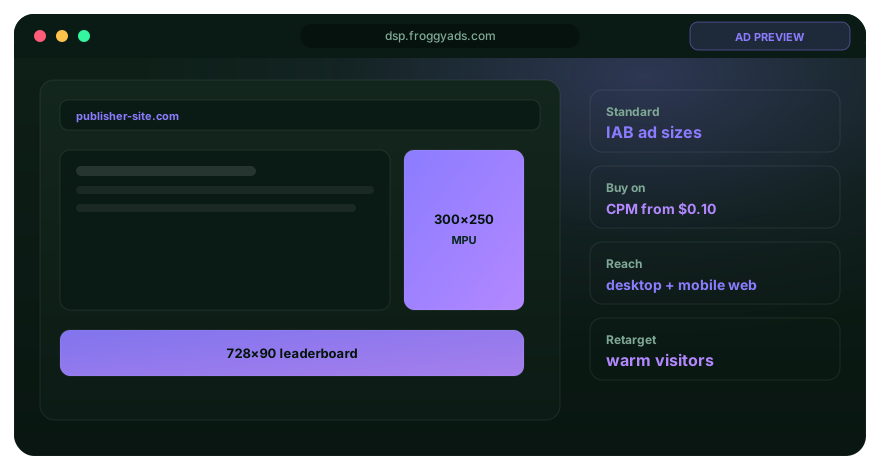
Compare each ad format on the action it can reasonably support and the actual traffic it delivered. We offer push, native, display and pop formats with controls for targeting, sources and spend. Use the calculator on compatible records from the selected campaign, then judge its commercial result with your own accepted-outcome and cost evidence. A click from one format should not automatically be treated as the same intent as a visit from another.

Create My Free Account
Illustration comparing advertising formats for conversion rate calculator execution

Three worked conversion-rate comparisons

Submitted versus accepted leads

In a hypothetical cohort of 500 eligible visits, 15 people submit a form and nine leads pass qualification. Enter 15 / 500 for the 3.00% submission rate, then 9 / 500 for the 1.80% accepted-lead rate. Retain both labels and the qualification date. The difference identifies follow-up or fit questions rather than an arithmetic fault.

Percentage points versus relative change

A hypothetical change from 3% to 4% is an increase of one percentage point. Relative to the 3% baseline, the increase is (4 − 3) / 3 × 100, or about 33.33%. State which comparison you mean. Calling it a 1% relative improvement would describe a different result; the rate calculator itself does not calculate this change for you.

A planning range rather than a sales promise

At 2,000 eligible visits, assumed rates of 1%, 2% and 3% imply 20, 40 and 60 conversions before any further quality adjustment. These are hypothetical scenarios, not a forecast from the calculator. Connect each range to your evidence, qualification rules and affordable spend, then update the plan when actual counts become available.

Common risks and how to control them

Denominator Drift

A change in eligible base can move the percentage while accepted volume stays constant. Review scope, filters, dates and traffic groups before comparing calculations. If a tracking outage removed part of the denominator, flag the affected period rather than accepting the larger percentage. Use the last compatible period or wait for a new, clearly defined baseline.

Duplicate Conversions

Repeated imports and browser retries can inflate the numerator. Reconcile event identifiers with accepted business records, retaining legitimate repeat actions under the chosen definition. If you intend to measure the share of sessions that converted, collapse repeated actions within the same session appropriately. Explain any correction in the calculation record before using it to change bids or budget.

Premature Reporting

A recent cohort may contain many pending leads or orders that have not had time to mature. Calculate a clearly labelled provisional rate if useful for operations, then revisit it after the agreed qualification period. Compare cohorts with similar follow-up opportunity. Waiting for a fixed number of calendar days is not sufficient if the business review process takes longer.

Investigate the specific faulty input before treating a surprising rate as a campaign outcome. Zero accepted actions from a positive eligible base gives 0%; a zero denominator makes the ratio undefined. The tool asks for a positive denominator rather than assigning an artificial rate. When no eligible opportunity was observed, report that state plainly and keep it out of a claimed performance comparison.

Put the calculated rate beside acquisition cost

To connect the percentage with cost, first state which costs are included. Media-only CPA is campaign spend divided by accepted conversions. A fuller acquisition measure can include creative, tracking, page work and the relevant operating effort. Keep those boundaries consistent when comparing sources; a tool fee or an external service should not disappear just because the rate improved.

A planning relationship can help test affordability. Under compatible click-based assumptions, allowable average CPC equals allowable media CPA multiplied by conversion rate as a fraction. If the hypothetical allowance is USD 40 per accepted action and the assumed click-to-accepted-action rate is 2%, the implied CPC ceiling is USD 0.80. It is a planning limit under those assumptions, not a quoted FroggyAds price or a guarantee that traffic is available at that cost.

Budget and bid need separate decisions. The bid expresses your offer for delivery under the buying model; the budget limits the spend you authorize. Use our campaign controls to keep the test within that allowance, then replace planning assumptions with actual accepted counts and costs. Funding the account does not establish the number of conversions the campaign will produce.

How conversion rate calculator connects to paid media

Campaign objective determines which completed action belongs in your input. Audience and market fit determine who was eligible for that action. Keep both explicit when using a calculated rate to compare traffic groups. FroggyAds gives you practical targeting and source controls for the purchase; your own business records establish whether the resulting actions qualified.

Choose FroggyAds for paid distribution when you have an offer and a measurement plan ready to test. We provide a self-serve DSP and global ad network with push, native, display and pop formats across 750+ SSP integrations. The buy traffic guide explains the buying workflow. Apply our GEO, device, bid, budget and source controls to a defined campaign, then use reconciled inputs to calculate its accepted response.

Retain the ad promise, destination and acceptance rule while testing a single acquisition change. If you change price, audience and the conversion event together, the new percentage cannot isolate which change mattered. Save the previous configuration and the exact calculation inputs so you can decide whether the next traffic purchase should repeat, narrow or revise the test.

Put the guide into practice

Turn Conversion Rate Calculator into a bounded campaign test

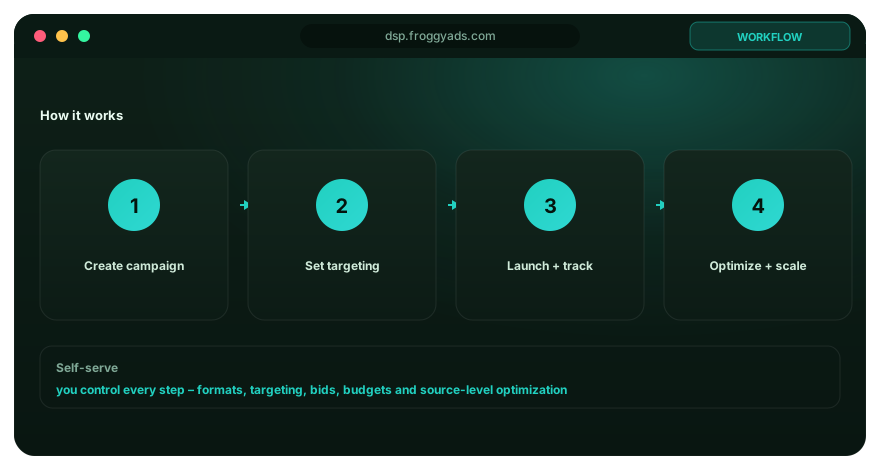
Prepare the event, eligible group, destination and spending limit before launching. After the campaign produces a comparable cohort, calculate the rate and reconcile the accepted outcome with the cost. We recommend a bounded next increment when that evidence supports it. Your free FroggyAds account gives you a place to prepare the campaign; paid traffic requires funding.

Create My Free Account
Illustration of a campaign launch checklist for conversion rate calculator

How to evaluate tools, templates and vendors

  • Can you see and export the two original counts behind the displayed percentage?
  • Does the tool identify its numerator unit and eligible denominator clearly?
  • Will zero, missing and duplicate inputs remain visible rather than silently producing a plausible result?
  • Are rounding, aggregation and any estimated values explained before you compare outputs?
  • Can your team reproduce the result from saved records after the report or tracker changes?

Choose a calculation tool for transparent arithmetic and a tracker for reliable collection; they are different jobs. This calculator accepts your supplied counts and formats the ratio. It does not import CRM records, certify consent coverage or identify fraudulent events. Evaluate those tasks in the systems that actually perform them, and keep their limitations with the calculation before using it to fund another campaign.

Interpret the output before sharing it

A percentage needs context to be useful to another reader. Include the action, numerator, denominator unit, eligible group, dates and qualification state in the accompanying sentence. For example, say that nine approved enquiries came from 500 eligible campaign visits during the stated period. That gives a reviewer more decision value than a chart labelled only 1.8%.

Engagement rate and clickthrough rate describe other steps. Google Analytics engagement can arise from session duration, views or a key event, while CTR compares clicks with impressions. Neither is automatically the share of visitors producing your accepted business action. Keep those metrics as distinct diagnostics and avoid substituting one for the conversion rate because its percentage looks more attractive.

Keep uncertainty visible when sharing an answer or planning a campaign. Small samples, missing collection, changing audiences and unresolved approval records limit what the number can support. This tool gives a ratio, not statistical significance, attribution proof or a predicted return. Use it to make your arithmetic reproducible, then bring the appropriate evidence to the commercial decision.

Calculate conversion rate

Enter non-negative counts from the same period, eligible population and counting rule, with a denominator greater than zero. Click Calculate to display the percentage to two decimal places. This calculator performs the arithmetic in your browser; its function does not submit these input values. It does not retrieve, qualify or verify your campaign records.

Select Calculate to display the conversion rate for the counts entered above.

Formula: (conversions / eligible interactions) × 100. For a session-share calculation, use sessions with at least one accepted action over all eligible sessions. Zero conversions with a positive denominator gives 0%; a zero denominator is undefined.

Frequently asked questions

When is a conversion rate calculator the right tool?

Use it when the numerator and eligible opportunity are clearly defined for the same population and period. The calculation is simple, but the result is useful only when everyone agrees what could convert, what did convert, and which records are valid.

What decision should the calculated conversion rate support?

Name the choice before calculating, such as comparing two landing pages under similar traffic or checking a funnel step against its baseline. The decision determines the event, denominator, segments, time window, and quality checks that belong in the result.

How does audience eligibility affect the denominator?

Count only the visits, users, leads, or opportunities that could reasonably complete the chosen action under the stated definition. Exclude ineligible records consistently. Mixing broad traffic with a conversion available to a smaller group understates performance.

Why should the offer be noted beside a conversion rate?

Price, availability, qualification, incentive, destination, and requested commitment influence the likelihood of action. Two identical percentages can describe very different commercial value. Keep the offer conditions visible when comparing periods or campaigns.

Which cost figures give the rate business context?

Pair the rate with media, production, platform, sales, fulfilment, and other relevant costs within a declared boundary, plus the value or quality of accepted outcomes. A higher percentage can still be less useful if it produces costly or unsuitable conversions.

What should be checked before entering calculator values?

Confirm the event definition, denominator unit, date range, timezone, filters, deduplication, eligibility, consent treatment, and data completeness. Use numerator and denominator from compatible sources or reconcile the difference before trusting the percentage.

What should accompany a conversion rate in a report?

Include the raw counts, population, period, segment, source, event definition, sample size, comparison baseline, and known data limits. A percentage without its counts can make a small or changing sample appear more stable than it is.

What should you investigate when a conversion rate jumps?

Check tracking changes, missing denominator records, duplicate events, traffic mix, offer changes, promotions, page edits, and sample size before celebrating. Break the rate into useful segments and compare raw counts with the timing of known changes.

How can you improve the rate without harming value?

Keep outcome quality, total volume, acquisition cost, cancellations, refunds, and customer safeguards beside the target rate. Tightening eligibility or encouraging low-value actions can raise the percentage while reducing the result the business actually needs.

When are more detailed segments useful?

Add a segment after its numerator, denominator, and business use are stable and the sample can support a meaningful comparison. Introduce one dimension at a time. Excessive slicing creates noisy percentages and makes ordinary variation look actionable.

Official sources used for this guide

These official references distinguish conversion rate, click response, media cost and engagement. Google documentation describes its own reporting definitions. The first IAB link opens a standards directory; only the public introduction to the historical impression guidelines was available for this review. No full guideline implementation or certification is claimed.

Save a reproducible conversion-rate calculation

Use these eight entries to retain the inputs and limitations behind one calculation. The worksheet records your evidence; it does not require a new tracking architecture or imply that the calculator collects any of these records itself.

Decision and unit worksheet

Write the decision and the unit of opportunity, such as comparing accepted leads per eligible landing-page session. Record which result would change your next action. A calculation made only to fill a dashboard cell can be numerically correct while offering no reason to alter the campaign.

Event selection worksheet

Name the accepted business state and the event or record that represents it. Retain the pending and rejected states separately. If several actions are combined, explain the event-count basis rather than describing the output as a unique-person or unique-session fraction.

Record source worksheet

Save the source report, export date, filters and timezone for both inputs. If the numerator and denominator come from different systems, document how their scopes were reconciled. Missing records should remain a known limitation instead of being filled with an unlabelled estimate.

Observed coverage worksheet

Describe which population the records cover and any collection or consent limitations that affect interpretation. Use compatible observed counts for the arithmetic. If a modelled estimate is reported elsewhere, label it separately and explain why it should not be confused with the directly observed input.

Repeat-action worksheet

State whether you count events, converting sessions or people. Keep the rule for duplicate retries and legitimate repeat purchases with the export. This lets another reviewer understand why a corrected numerator differs from the unprocessed event total without assuming that every repeated identifier is an error.

Input and rounding worksheet

Retain the two numbers entered, the displayed result and any rounding applied in a later report. Check a known example manually before using unfamiliar data. Use original counts when aggregating groups, because recomputing from rounded percentages can introduce an avoidable difference.

Comparison worksheet

Keep baseline and test records under the same event definition, eligible population and follow-up rule. State the difference in percentage points separately from any relative percentage change. When the groups overlap, resolve that overlap before presenting their summed counts as a combined audience.

Correction and decision worksheet

Record any input correction, the reason, the previous result and the date of the change. Name the person responsible for the next spending decision. Preserving that history helps you reverse an unsupported media adjustment without silently changing the report that originally justified it.

Launch a controlled paid-media test

Use the completed calculation record to plan a specific campaign increment. Our targeting, format, budget and source controls let you buy the traffic group you intend to evaluate. Keep the ad format and destination promise consistent, and compare the next accepted cohort with the same calculation rules. The purpose is an affordable test you can interpret, rather than a promise that the historical percentage will repeat.

Create My Free Account
Calculate from compatible counts

Use the calculator alongside a clear measurement definition

This page helps you enter compatible counts, reproduce the arithmetic and interpret the resulting percentage. The related Conversion Rate guide explains the broader measurement definition and decision framework. Use the two together when you need to move from a reported ratio to a practical acquisition decision.

Connect the ad format with the visitor commitment and the campaign objective with the accepted action. Audience and market fit should define the eligible comparison group, while budget and bid must fit your affordable acquisition cost. Source quality is meaningful when the traffic records can be reconciled with that action; a low delivery price alone does not establish useful customer value.

CheckpointPage-specific actionEvidence to keep
FitChoose the business action and compatible denominator before entering counts.Event state, eligible unit, filters, dates and qualification rule.
TestCalculate from reconciled records and retain both inputs.Source exports, deduplication rule, output and rounding note.
DecisionReview accepted value, volume and cost before the next increment.Comparable baseline, cohort maturity and authorized spending limit.

Hypothetical calculation: USD 250 of media spend produces 7 accepted actions from 350 eligible opportunities. The conversion rate is 7 / 350 × 100 = 2.00%, while media-only accepted CPA is USD 250 / 7 = USD 35.71 after rounding. Add other relevant costs when reporting a fuller acquisition measure. These figures are planning arithmetic, not FroggyAds customer results.

Choose FroggyAds when your next step is a controlled paid traffic campaign. We give you format, targeting, budget and source controls so you can apply a clear buying brief and evaluate its accepted outcome. Create your free FroggyAds account to prepare your campaign, then fund the traffic test within your approved allowance.

Direct answer

Calculate the ratio, then judge the decision

Enter compatible counts, retain their definitions and show the eligible base with the percentage. We recommend using the result with accepted quality and cost before expanding a FroggyAds campaign. The arithmetic should be easy to reproduce; the business decision should remain tied to the evidence your own customer records can support.